
Connecting PowerBI to Microsoft Business Central
- Zainab Abdulwahab
- Sep 25, 2025
- 2 min read
Business Central is a business management system that holds data like finances and inventory. To connect to it, we use a special web link.
When you click on the “Get data” Icon, the image below will pop up. Once it pops up, click on the MORE icon to get a list of all the available connectors.

Since we are learning how to connect to Microsoft Business Central, we will use ODATA FEED. It will be shown in the image below. Once you scroll down and see the OData Feed, tap on it and click CONNECT.

After clicking the connect button, A window will pop up asking for a URL. This is the point you go and refer to the “Navigating the Business Central Environment” article. The last thing done there was copying ODATA V4 URL, this is now where the link copied will be pasted.

Paste the copied link and “delete whatever is after the last slash (/) following the company name like it’s done in the image below.

Click on the okay icon to view your next step and authenticate with Oauth. Once authentication has been completed, a list of all the tables/data in your Business Central Environment comes up. The image below shows you a sample of what this looks like.
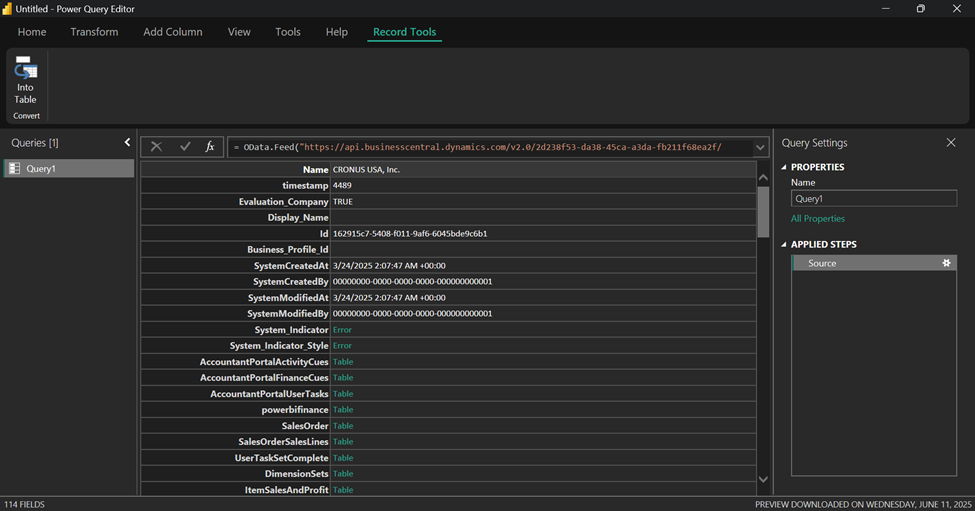
The next step is to navigate to the table you want to work with on the list of tables available. Since we’re working with the customer ledger Entries table, pick the table by tapping “Table” beside it.

Once the table comes up, click on the “Close and Apply” to load your data into Power BI as highlighted in the image below.


Comments